
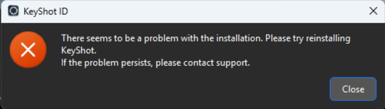
When trying to activate KeyShot Studio, you may get an error from KeyShot ID: There seems to be a problem with the installation. Please try reinstalling KeyShot.
If the problem persists, please contact support.
Environment Details
- KeyShot
- 2026.1+
- Subscription License
Troubleshooting
Despite the wording of the error, it is not necessarily related to the installation but rather indicates an issue where the communication between KeyShot Studio and KeyShot ID is disrupted.
1. Manually start keyshot_id
Just to be sure, please close KeyShot Studio

To manually force close Keyshot ID - open task manager and kill all process named keyshot(…).exe.

MacOS:
/Applications/KeyShot ID.app/Contents/MacOS/keyshot_id
Windows:
C:\Program Files\KeyShot 2026\bin\keyshot_id.exe
3. Press "Log in" (right click the icon in start tray).Be sure that the browser pops up with a sign-in (or quickly progressing to a signed in page, if you are already signed in)

2. Validate read/write access
Validate that KeyShot ID can read/write the necessary cache files. The cache files are in the same folder as the log files. If no log files exist, it's likely a permissions issue.
Windows:
- Installed Just For Me:
%LocalAppData%\Luxion\KeyShot ID or
C:\Users\<username>\AppData\Local\Luxion\KeyShot ID - Installed For Everybody:
%AllUsersProfile%\Luxion\KeyShot ID or
C:\ProgramData\Luxion\KeyShot ID
- Right-click the KeyShot ID folder.
- Select “Properties”.
- Disable “Read-only”.
- Go to the Security tab.
- Click the Edit button. Ensure that all users have Read and Write permissions.
- Click Apply and OK.
- Click Apply and OK once more.
macOS:
- /Users/<Username>/Library/Application Support/Luxion/KeyShot ID or
~/Library/Application Support/Luxion/KeyShot ID
To set the permissions
- Browse to the Macintosh HD/Application Support/Luxion/ folder.
- Right-click the KeyShot ID folder and select “Get Info”.
- Scroll down to Sharing & Permissions and make sure all users have both Read & Write.
Note: If you don't see your username in the list click the + and add your username, then give read and write permission. - Click the settings button (gear icon) select “Apply to enclosed items” and confirm.
- Close the Get Info window.
3. Proxy
If KeyShot has been used before with proxy, when keyshot_id is installed it may not pick up the configuration.
To remedy this, please navigate to Help → Activate License and click Back, then using the “gear icon” in the sign-in flow, please set the proxy.
synchronize that, it may also in general be a good way to make sure that proxy settings is as the user expects them to be.
Issue Still Persists
If the issue still persists, please reach out to support.
Please provide both the log folders for KeyShot ID and KeyShot.
Please send us the KeyShot ID log files
Windows:
- Installed Just For Me:
%LocalAppData%\Luxion\KeyShot ID or
C:\Users\<username>\AppData\Local\Luxion\KeyShot ID - Installed For Everybody:
%AllUsersProfile%\Luxion\KeyShot ID or
C:\ProgramData\Luxion\KeyShot ID - Please send us an archive of that folder.
macOS:
- /Users/<Username>/Library/Application Support/Luxion/KeyShot ID or
~/Library/Application Support/Luxion/KeyShot ID - Please send us an archive of that folder.
Please send us the KeyShot log files
The KeyShot Studio logs are located in
Windows:
- Installed Just For Me:
%LocalAppData%\Luxion\KeyShot\logs or
C:\Users\<username>\AppData\Local\Luxion\KeyShot\logs - Installed For Everybody:
%AllUsersProfile%\Luxion\KeyShot\logs or
C:\ProgramData\Luxion\KeyShot\logs - Please send us an archive of that folder.
macOS:
- /Users/<Username>/Library/Application Support/Luxion/KeyShot/logs or
~/Library/Application Support/Luxion/KeyShot/logs - Please send us an archive of that folder.