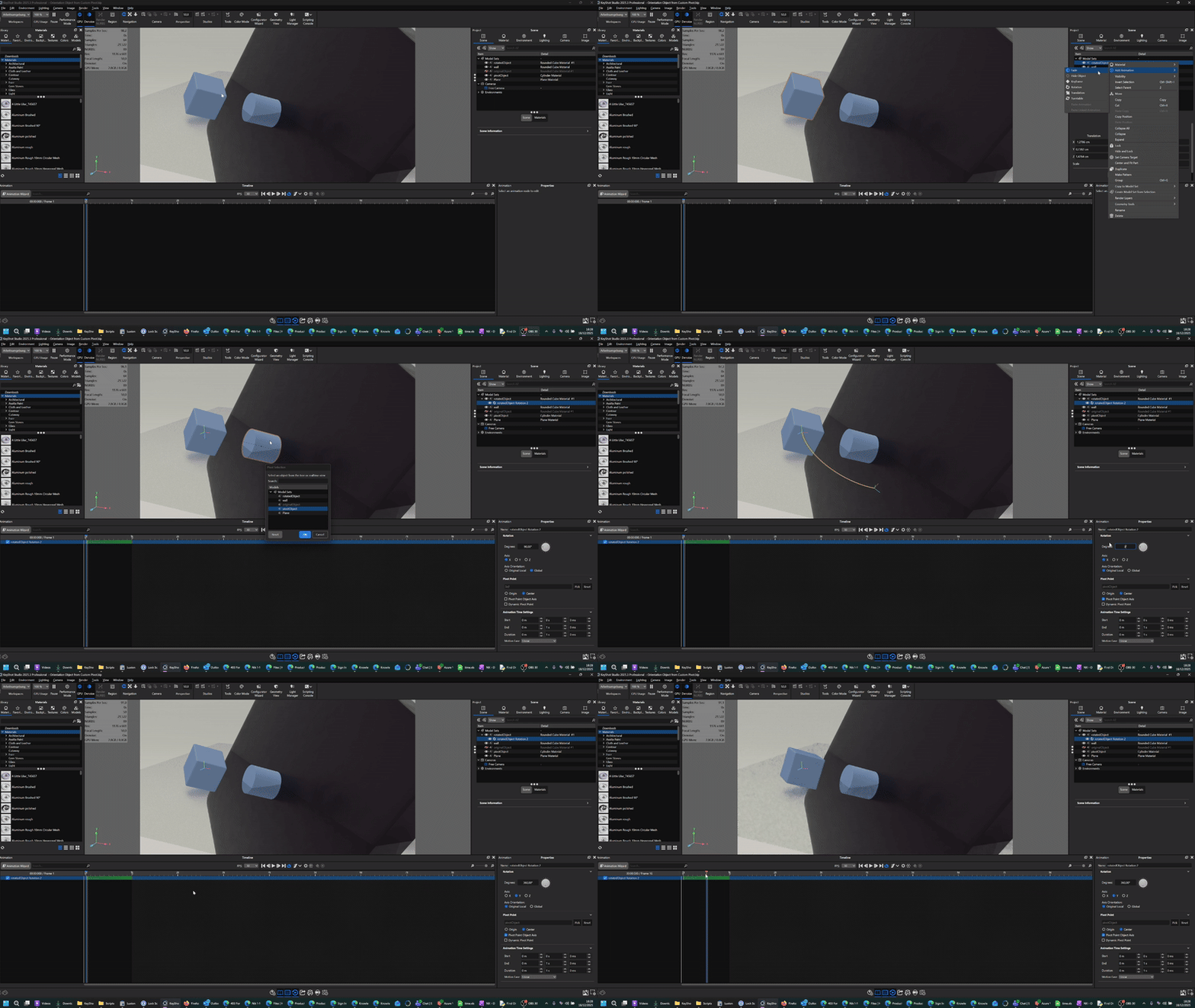
Traditionally, the only way for such animations in KeyShot was to eyeball it which usually produces in inaccurate and wobbling results, or to export it to a different CAD application in order to generate local axis.
In the upcoming update, creating custom coordinate systems and using them for animations in KeyShot will have its own tool. Until then, we can make use of the Custom Pivot tool and a script.
First, duplicate the object that you want to animate and move it to the Scene Origin (0,0,0). Name the object "rotatedObject" (or adjust the script input later)
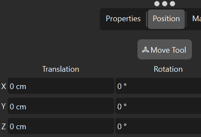
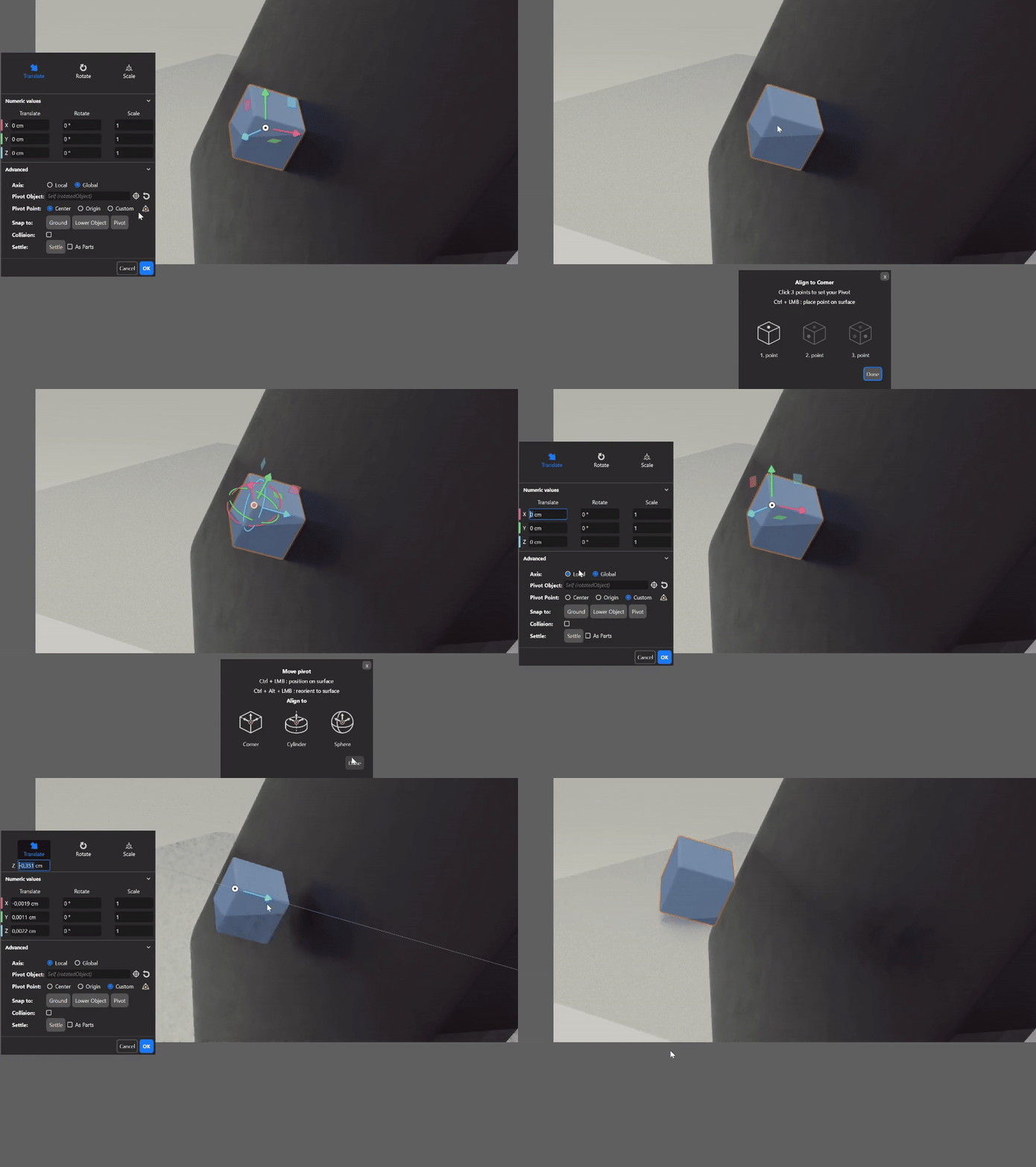
Then, using the Move Tool, click on the Custom Pivot widget, and use it to align the axis, then switch to local axis and move the object along the axis that you would like to create the animation around.
Now add a Cylinder and name it "pivotObject" (or adjust the script input later)

Lastly run the script once it's added to you Scripts folder in the Resource Folder:
Find Orientation.py
Once you run the script, if you used different names, you can enter them and click OK.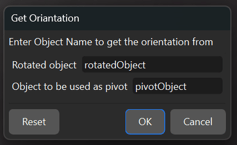 The script will align the Cylinder along the local translation axis.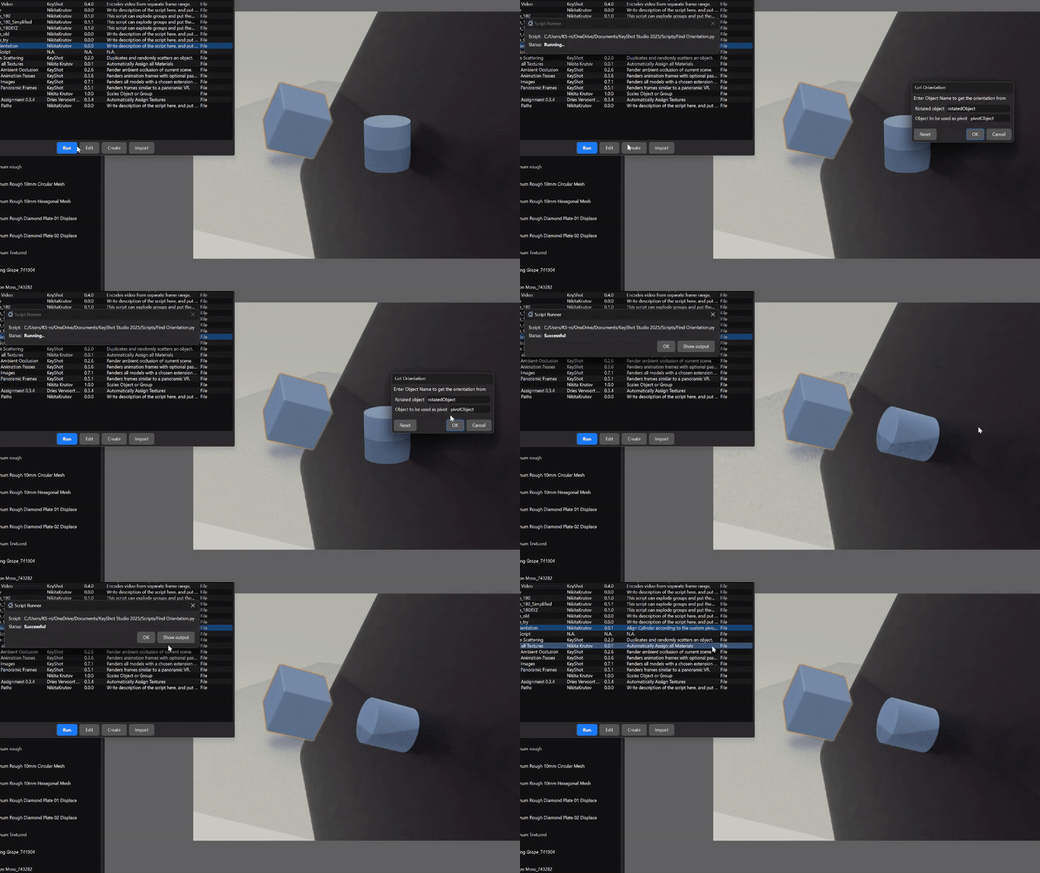
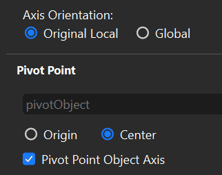
Now you can use the Cylinder as your pivot for animations. Select the pivotObject as the Pivot.
Use the Original Local as the Axis Orientation and make sure Pivot Point Object Axis is checked.